Setting Up S-Pen Pro Shortcuts
The S-Pen Pro is a pen for Samsung tablets. It allows you to assign shortcuts to gestures performed while the pen is in the air and when pressing it down.
This does not apply to the regular S-Pen. Only the Pro version has these features. On a regular S-Pen, there is no gestures and the button always acts as a middle click.
S-Pen Setup
To enable shortcuts, first make sure that your pen is properly set up. Go into your Settings under S-Pen:
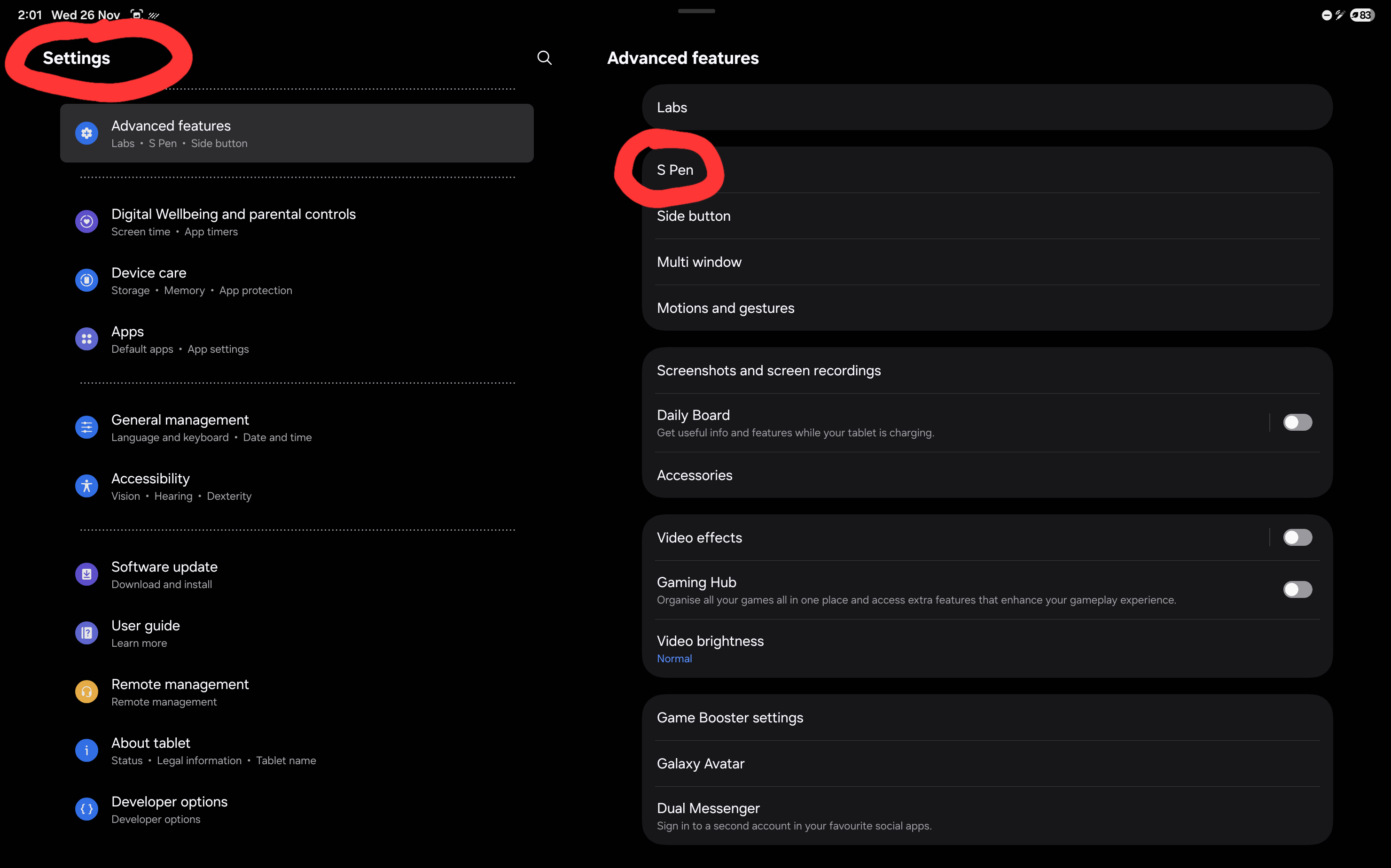
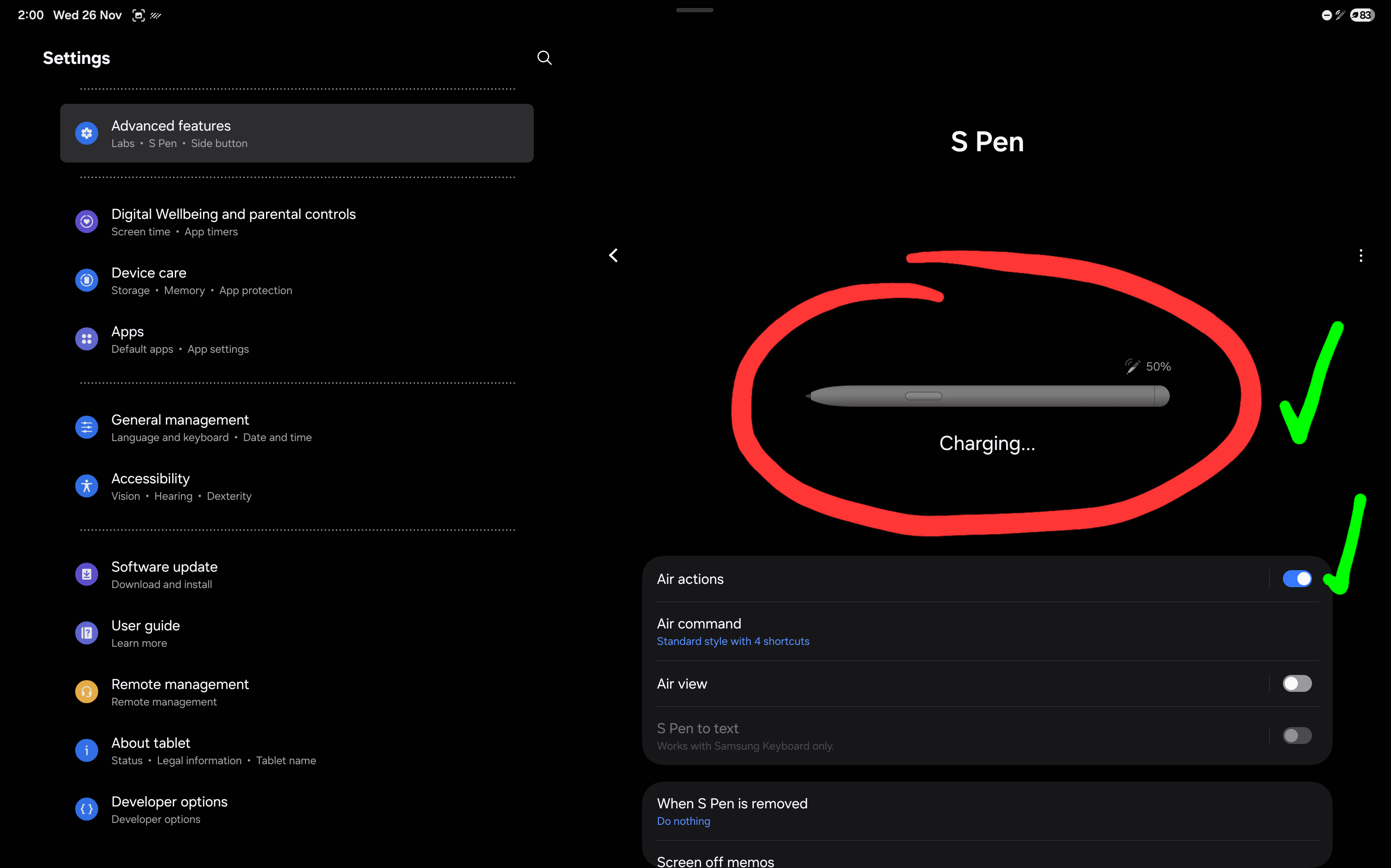
Make sure that you see that the S-Pen Pro is connected and that Air Actions are turned on. If you don’t see that the pen is charging, the Air Actions section is missing or can’t be turned on, then you probably don’t have an S-Pen Pro.
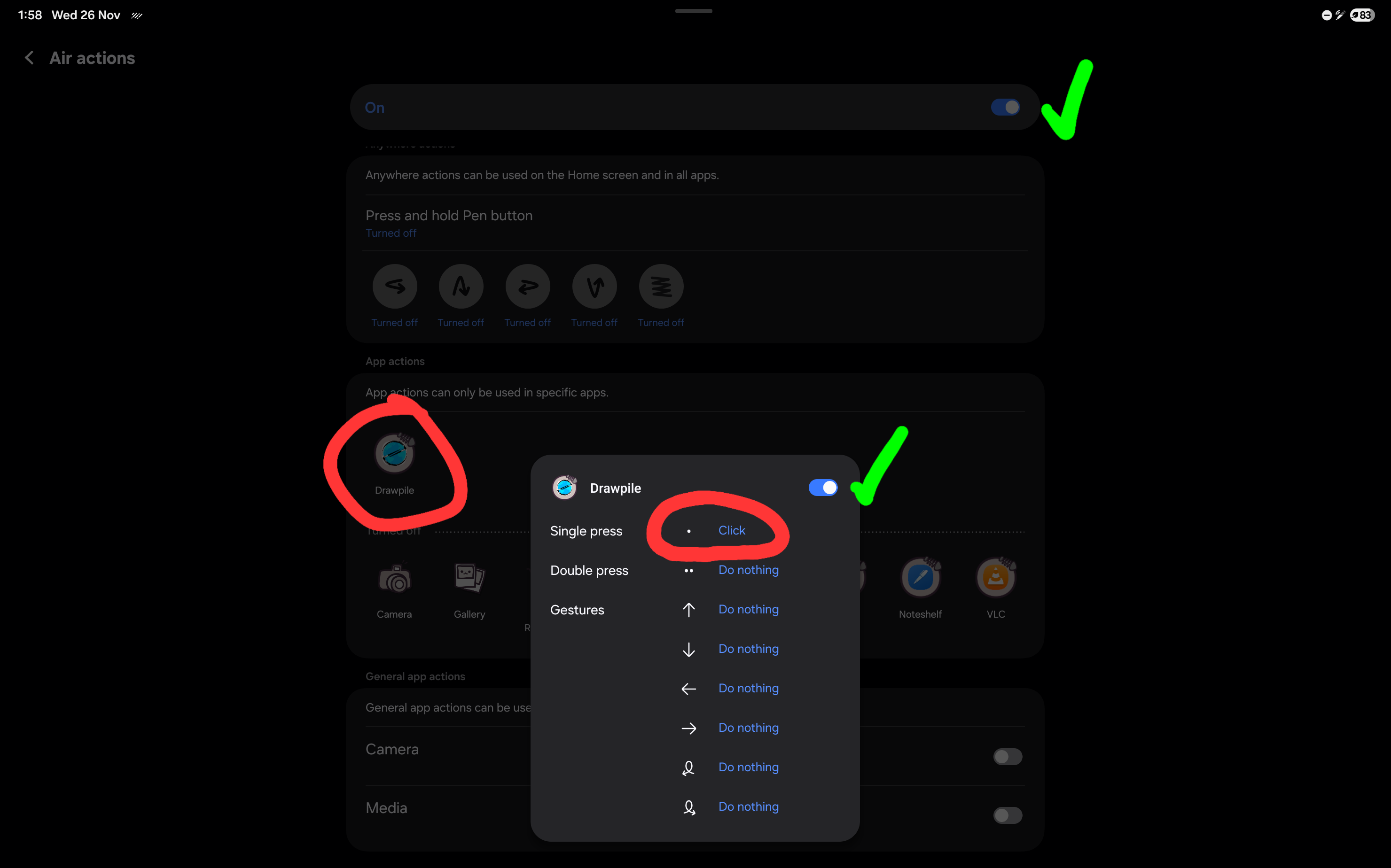
Under the Air Actions settings, make sure that the actions you want to use are set to “click”. Otherwise the S-Pen Pro will either do nothing at all or fail to transmit the input to Drawpile.
Assigning Shortcuts
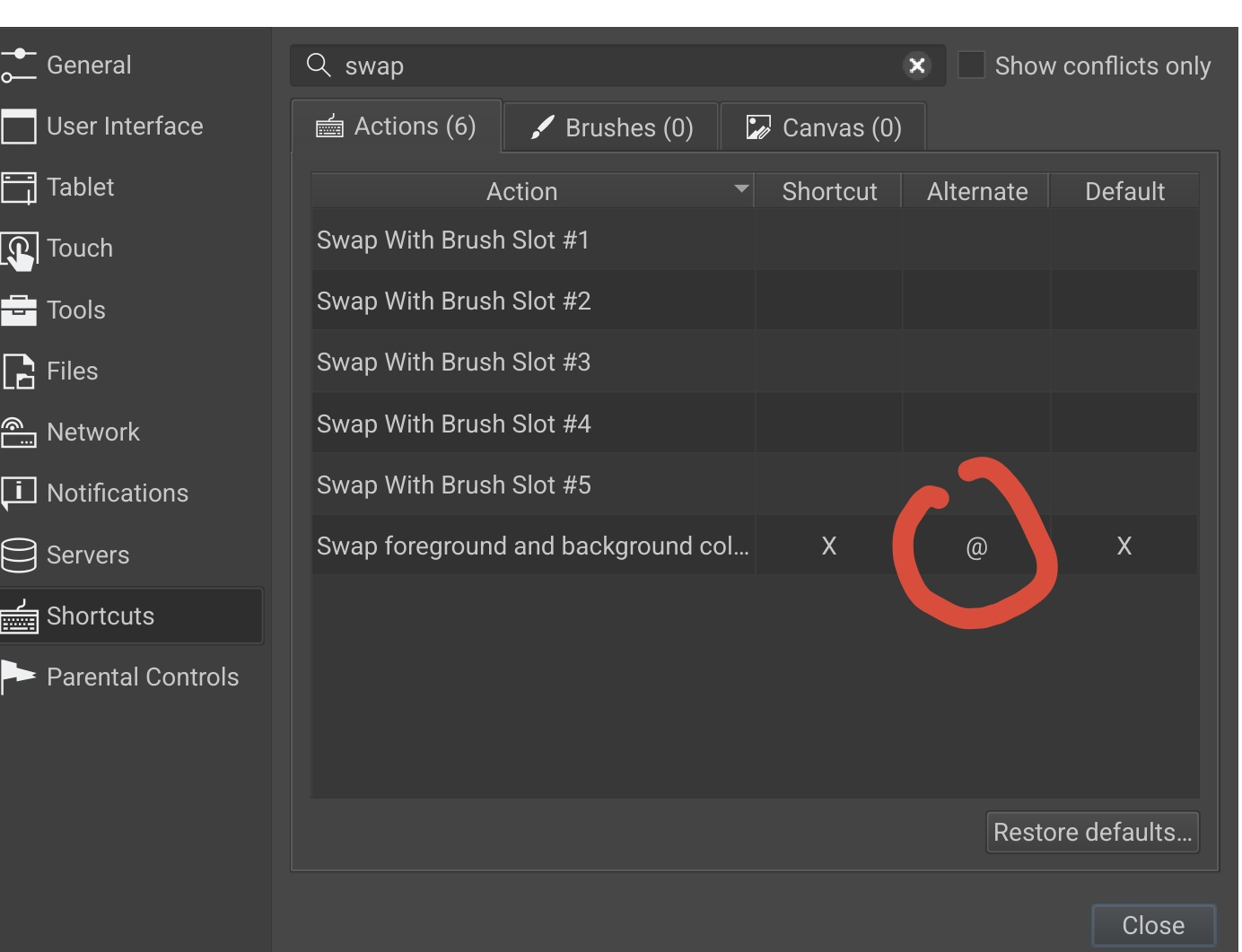
Once you have this set up, start Drawpile and go into Edit → Preferences, into the Shortcuts tab. Find the shortcut you want to set and press on the primary or alternate shortcut column. Then perform the action you want to assign to it.
The shortcut will show as @, # or F9 to F12, depending on which action you used. That’s how the S-Pen Pro transmits its actions under the hood.
Once you’ve assigned your shortcuts, close the settings again. They should now be usable.
These instructions and screenshots were provided by Partack.